Hex Dump Explained: How to Read a Hex Viewer
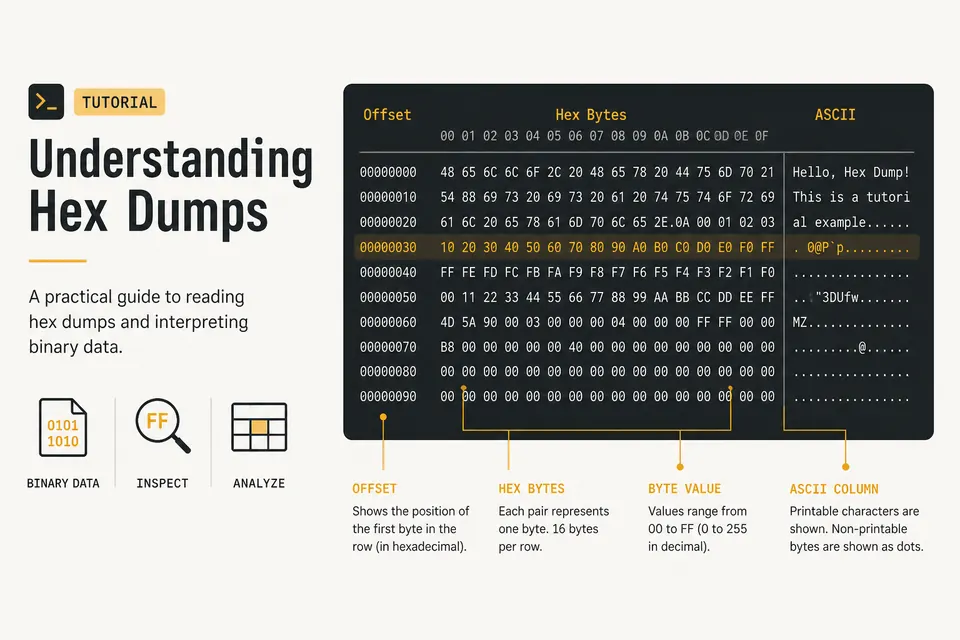
A hex dump usually shows an offset on the left, hexadecimal bytes in the middle, and an ASCII preview on the right. Each column answers a different question: where the data is, what its values are, and whether any bytes look like text. This guide explains the columns and works through a text file and PNG signature.
What a Hex Dump Actually Shows
Files are sequences of bytes. Each byte is a number from 0 to 255. Writing those numbers in decimal is awkward; writing them in binary is worse (eight bits per byte). Hexadecimal sits in the middle: two hex digits per byte, sixteen possible values per digit (0-9 and A-F).
So a hex dump is just a formatted printout of those bytes. Tools like xxd, hexdump, Wireshark, or our online hex viewer all show the same idea with small layout differences.
The Three Columns You Always See
Almost every viewer uses the same layout. Learn it once and you can read dumps from any tool.
| Column | What it means | Example |
|---|---|---|
| Offset | Byte position from the start of the file (usually hex) | 00000000 |
| Hex bytes | The raw data, often 16 bytes per row | 89 50 4E 47 |
| ASCII | Printable characters for those same bytes; dots for non-printable | .PNG |
Read left to right: where you are in the file, what the bytes are in hex, and a quick glance at whether those bytes look like text.
Offsets: Finding Your Place in the File
The offset is a byte index. Offset 0 is the first byte. Offset 10 (hex) is the 17th byte, because hex counts 0-F before rolling to 10.
Most dumps print 16 bytes per line, so offsets jump by 10 hex each row: 00000000, then 00000010, then 00000020, and so on.
00000000 48 65 6C 6C 6F 20 57 6F 72 6C 64 21 0A 00 00 00 |Hello World!....|
00000010 01 02 03 04 |....|
If someone says “look at offset 0x2A,” count from the left: row 00000020, then 10 bytes into that row (0x2A − 0x20 = 0x0A). That is how you navigate large dumps without scrolling blindly.
The ASCII Column: Spotting Strings Fast
Bytes from 0x20 to 0x7E are printable ASCII and can appear as characters in the preview column. Viewers usually replace other bytes with a dot. This helps you spot text such as paths and headers, but the hex column remains the source of the exact byte value.
For a reference of which byte maps to which character, keep the ASCII table open. Space is 20, digit 0 is 30, uppercase A is 41, lowercase a is 61. Those four are enough to orient yourself in most dumps.
Magic Bytes: File Type Fingerprints
Many file formats start with a fixed signature, often called magic bytes. The OS and tools like file on Unix use those first few bytes to guess the type, regardless of the filename extension.
PNG is the classic example. Every valid PNG begins with eight bytes:
89 50 4E 47 0D 0A 1A 0A
In the ASCII column that often looks like .PNG.... because 89 is not printable, while 50 4E 47 is the literal string “PNG”.
| Format | Magic (hex) | ASCII hint |
|---|---|---|
| PNG | 89 50 4E 47 0D 0A 1A 0A | .PNG.... |
| JPEG | FF D8 FF | ... |
| GIF | 47 49 46 38 | GIF8 |
| 25 50 44 46 | ||
| ZIP | 50 4B 03 04 | PK.. |
If a file named photo.png starts with FF D8 FF, it has a JPEG signature rather than a PNG signature. Confirm the rest of the structure before deciding the file type; a few leading bytes alone do not prove that a file is valid.
Worked Example: Reading a Tiny Text File
Suppose a file contains only the word Hi followed by a newline. In a dump you might see:
48= ‘H’ (72 decimal)69= ‘i’ (105 decimal)0A= line feed (LF)
Convert those hex values to binary with the binary converter if you want the bit patterns: 48 is 01001000, which is the same byte you get from text to binary for the letter H.
Endianness and Multi-Byte Values
Single bytes are unambiguous. Multi-byte integers are not. Little-endian systems (x86, most ARM phones) store the least significant byte first. Big-endian stores the most significant byte first.
The 32-bit integer 0x12345678 appears in a little-endian dump as:
Same value in big-endian:
Network protocols often use big-endian (“network byte order”). Desktop memory dumps are usually little-endian. If a length field looks absurdly large, try flipping the byte order before you assume the file is corrupt.
Practical Tips When Debugging
Start at offset zero and check magic bytes. Then scan the ASCII column for readable strings. Only after that dive into structured fields at known offsets from a format spec.
Compare two dumps when something broke after a save or a network transfer. Diff tools that highlight changed bytes save a lot of time. Null bytes (00) in the middle of supposed text often mean UTF-16 or a truncated C string.
For steganography experiments that hide bits inside images, a hex view of the pixel payload is more honest than looking at the picture. See also our notes on binary steganography and related posts like hexadecimal vs binary.
Hex vs Binary vs Decimal at a Glance
Same byte, three notations. Use whichever matches the tool you are talking to.
| Decimal | Hex | Binary | ASCII |
|---|---|---|---|
| 72 | 48 | 01001000 | H |
| 137 | 89 | 10001001 | (non-print) |
| 80 | 50 | 01010000 | P |
| 255 | FF | 11111111 | (non-print) |
FAQ
Why do hex dumps use two digits per byte?
One byte is eight bits, which is exactly two hex digits (4 bits each). That alignment is why hex is the default for memory and file inspection. See the how to read binary guide if you want the bit-level version.
What does a dot mean in the ASCII column?
The viewer decided that byte is not a safe printable character. It might be a control code, high-bit UTF-8 continuation, or binary data. Do not assume it is an actual period character unless the hex is 2E.
Can I convert a hex dump back to a file?
Yes. Tools like xxd -r rebuild a binary file from a dump. Online, paste hex into a viewer or converter that supports export. Start from the main converter if you only need text, hex, and binary side by side.
Is hex the same as base64?
No. Hex encodes each byte as two characters from 0-9A-F. Base64 packs three bytes into four characters from a different alphabet. Hex dumps preserve byte boundaries; base64 is for compact text transport of binary blobs.
Try It Yourself
Open a PNG, a small text file, or a packet capture and look at the first row. Match the magic bytes. Then jump to an offset from a format document and see if the field sizes line up.
Use the free Hex Viewer on BinaryTranslator.org to inspect files in the browser. Pair it with binary to text when a region is clearly encoded text, or the IEEE 754 tool when you suspect a floating-point field in the middle of a dump.
Check the examples
Technical reference
Related Articles

Hexadecimal vs Binary: When to Use Each Format
Comprehensive comparison of hexadecimal and binary number systems. Learn which format to use for programming, debugging, and data representation.
UTF-8 vs ASCII: Byte Counts for Hello, Accents, and Emoji
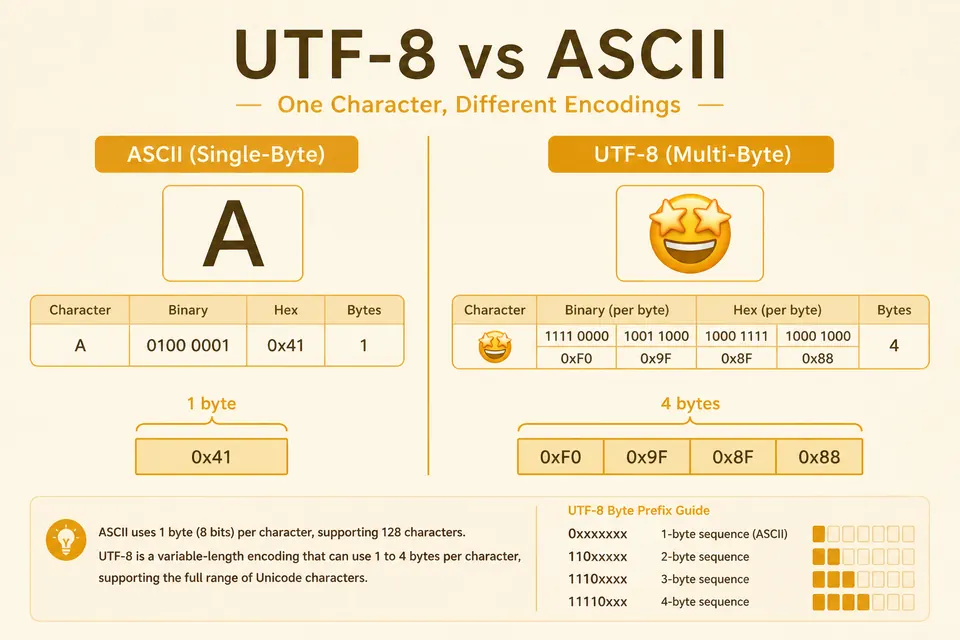
ASCII fits in one byte. UTF-8 can use one to four. See why emoji and accented text expand the bitstring, with clear examples.
IEEE 754 Explained: Float to Binary (Sign, Exponent, Mantissa)
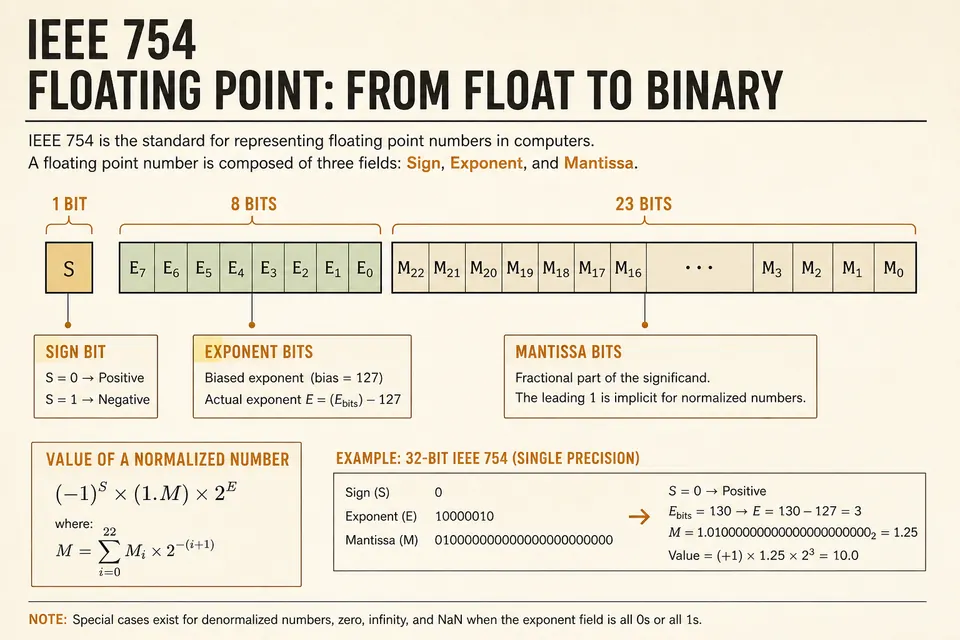
Break a floating-point number into sign, exponent, and mantissa bits. Single vs double precision with a worked example you can verify in the calculator.